
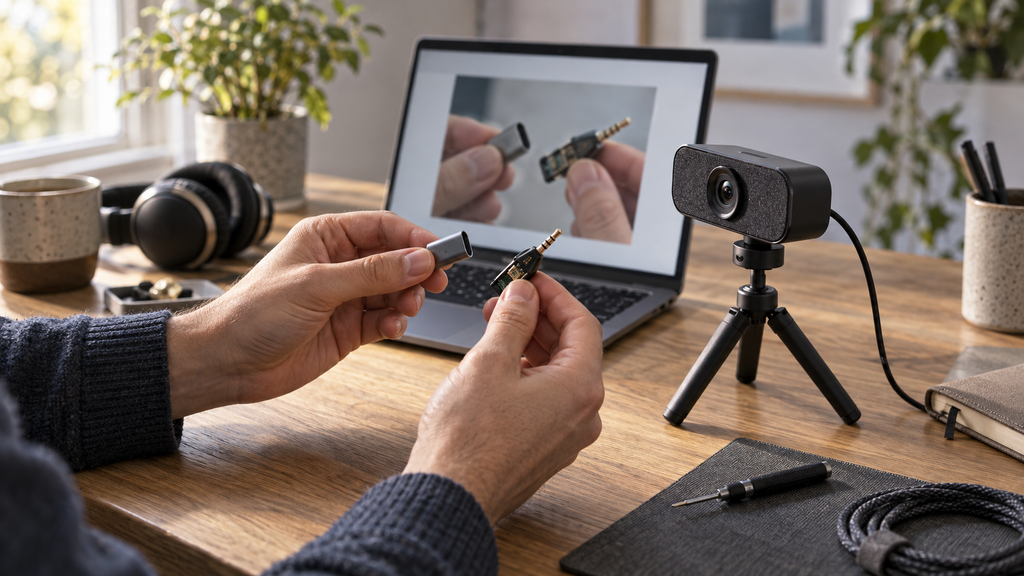
The camera request can look out of context in a situation when you encounter it on a non-video communication platform. There could be several reasons why you have encountered a camera request (e.g., while creating your account, when taking pictures of a product or during an online course). To understand the request, it is necessary to distinguish the intent behind the request from how the browser functions as an intermediary between your device and a website.
The Browser Controls Access to the Device
It is not possible for websites to handle cameras like they would regular images that exist already in a webpage. To allow the website to capture media from devices such as webcams, a browser function called getUserMedia provides a common interface to the browser requesting access to media inputs. Prior to providing the stream, the browser will require the user to approve this request. Both camera and microphone permissions can be requested independently at the time of service.
According to Mozilla Developer Network (MDN) Web Docs, the getUserMedia API allows developers to request permission to access local media inputs including audio/video. In order for this API to work in the context of a publicly accessible website, it is required that it run in a secure context. Although the secure context will protect against man-in-the-middle attacks and eavesdropping, it does not help explain why a specific company is asking for an image. Therefore, a permission prompt is merely granting approval for accessing the camera; it does not imply that all uses of the camera are acceptable.
Depending on the browser and/or the decision made regarding access to the camera, permission may continue beyond the first action. For example, Firefox gives users the ability to choose to save their decision for future visits. As a result, subsequent visits may act differently from initial visits even if the reason for using the camera remains unchanged. Whether or not the camera is currently being utilized does not rely solely upon whether or not there was a permission prompt displayed.
Camera Requests Are Not Limited to Video Calls
A customer support session may want a close-up shot of damaged hardware (for example, a broken connector). These examples demonstrate types of applications of camera functionality where the video feed (or, alternatively, a captured image) is useful because descriptions provided in written form do not adequately illustrate the issue(s) needing attention.
Using similar browser APIs, a static image (a “still” photo) can also be obtained. For example, MDN provides an example camera tutorial demonstrating how live video feed is shown in real-time to create just one captured image: the page captures one frame of the continuous video input (the video) and puts it into an image. Live input is helpful to ensure proper alignment of the subject being photographed (regardless of whether the final desired output of photography is one single photograph). This is why the camera can be active prior to pressing the shutter button.
Another example includes account checks. The verification steps described for Phenom Poker include a live selfie and camera permission after an identification document has been uploaded. In this case, stated purpose of obtaining a live selfie was for identity verification purposes (not necessarily conversational purposes); additionally, Phenom Poker demonstrates that uploading an existing image and giving consent for access to a camera are two separate functions within the same workflow.
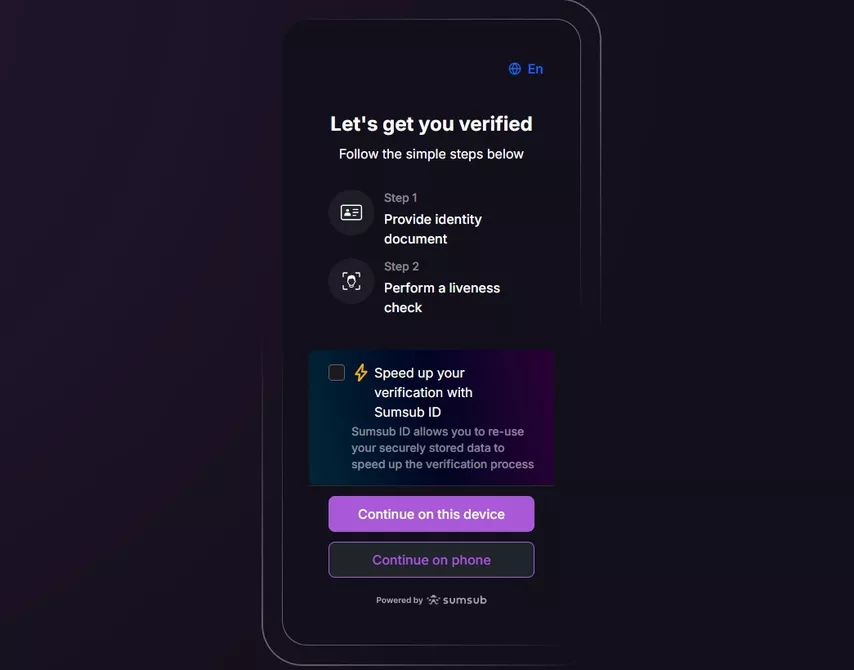
A Preview Does Not Explain Where Images Go
Once you see a live feed, this will tell you that your webcam works with the browser. The static photo example makes the difference clear. Taking a snapshot captures an image from the stream. Displaying this captured image is different from uploading it to a remote server. One way the functionality of a service could have implemented this would have been for the user to click a “Review” button after they take their snapshot, prior to submitting their file. Another way a service could implement this function would be for the service to begin transmitting the captured image immediately after taking the snapshot. A preview option alone does not give us enough information to determine which method was chosen.
This is important because we want to know how to understand common interface options. We want to know how to interpret the meaning of these buttons. Therefore, we do not have to assume that all previews are uploaded or that all previews stay local.
Several Settings Can Affect the Same Camera
In addition to access issues, other factors can prevent the display of a preview. For instance, Google Chrome allows users to select a default camera. Therefore, even though the desired camera may be available and enabled, users may face a device selection issue rather than an access issue. Similarly, laptops equipped with both internal and external cameras may experience similar problems.
The operating system introduces yet another variable into the mix. Users are granted permission in both areas separately. Furthermore, administrators of corporate/educational computers may block such access for employees/students.
Therefore, simply refreshing the browser several times may yield few results. Instead, we need to determine whether the problem lies in obtaining permission for the website, selecting a suitable camera device or configuring system-wide settings. When complete, users can view saved permissions in the browser and make sense of the small pop up box by knowing exactly what is being requested, what scope of permissions are required and where images are going.